Category: Computer

  • Quantum Computing: Revolutionizing the Future of Technology

    Quantum Computing: Revolutionizing the Future of Technology

    Introduction: In the ever-evolving landscape of technology, quantum computing has emerged as a groundbreaking field with the potential to revolutionize various industries. Unlike classical computers that rely on bits to process information, quantum computers utilize quantum bits, or qubits, to perform complex calculations and solve problems that are currently beyond the reach of classical computing. This article delves into the world of quantum computing, exploring its fundamental principles, potential applications, and the challenges that lie ahead.

    I. Understanding Quantum Computing:

    1. The Basics of Quantum Mechanics:

      • Quantum mechanics principles: superposition, entanglement, and uncertainty.
      • Qubits as the basic building blocks of quantum computing.
      • Quantum gates and quantum circuits for manipulating qubits.
    2. Quantum Supremacy:

      • Defining quantum supremacy and its significance.
      • The milestone achieved by Google’s Sycamore quantum processor.
      • The exponential speedup potential of quantum computers over classical computers.

    II. Quantum Computing Technologies:

    1. Different Approaches to Quantum Computing:

      • Superconducting qubits and their implementation in systems like IBM’s Q System One.
      • Trapped ion qubits and their application in systems like IonQ’s quantum computers.
      • Topological qubits and their potential for error correction.
    2. Quantum Computing Hardware:

      • Cryogenic cooling systems and dilution refrigerators for maintaining low temperatures.
      • Control systems and precision electronics for manipulating qubits.
      • Quantum error correction and fault-tolerant systems.
    3. Quantum Computing Architectures:

      • Quantum annealing and adiabatic quantum computing.
      • Quantum gate-based models and universal quantum computers.
      • Hybrid quantum-classical systems for optimization and simulation.

    III. Potential Applications of Quantum Computing:

    1. Optimization and Simulation:

      • Solving complex optimization problems in logistics, finance, and supply chain management.
      • Simulating quantum systems for drug discovery, materials science, and climate modeling.
    2. Cryptography and Cybersecurity:

      • Developing quantum-resistant encryption algorithms.
      • Enhancing secure communication and data privacy.
    3. Machine Learning and Artificial Intelligence:

      • Improving pattern recognition and data analysis.
      • Enhancing the training of machine learning models.
    4. Quantum Chemistry:

      • Advancing the study of chemical reactions and properties.
      • Accelerating the design of new drugs and materials.

    IV. Challenges and Future Directions:

    1. Scalability and Error Correction:

      • Overcoming noise and decoherence in quantum systems.
      • Developing robust error correction codes and fault-tolerant quantum computing.
    2. Hardware and System Complexity:

      • Designing more stable and reliable qubits.
      • Reducing the physical footprint and power consumption of quantum computers.
    3. Accessible Quantum Computing:

      • Democratizing quantum computing through cloud-based platforms.
      • Increasing collaboration between academia, industry, and research institutions.
    4. Quantum Algorithms and Software:

      • Developing quantum algorithms for specific use cases.
      • Optimizing compilers and programming languages for quantum computing.

    HISTORY OF QUANTUM COMPUTING

    Quantum Computing - Revolutionizing the Future of Technology Pict2 Infortechno

    The story of quantum computing begins with the birth of quantum mechanics in the early 20th century. In 1900, physicist Max Planck introduced the concept of quantized energy, which laid the foundation for quantum theory. Over the following decades, scientists such as Albert Einstein, Niels Bohr, Werner Heisenberg, and Erwin Schrödinger made significant contributions to the development of quantum mechanics, unraveling the bizarre and counterintuitive behavior of particles at the quantum level.

    In the 1980s, the concept of using quantum systems to perform computations emerged. Physicist Richard Feynman proposed that classical computers would struggle to simulate quantum systems effectively. He suggested that by harnessing the principles of quantum mechanics, it might be possible to build computers that would surpass the capabilities of classical machines for certain tasks.

    The idea gained further traction in the 1990s when physicist Peter Shor discovered a quantum algorithm that could efficiently factor large numbers, a problem that forms the basis of many encryption algorithms. Shor’s algorithm demonstrated the potential for quantum computers to break existing cryptographic systems, sparking interest and concern within the field of cybersecurity.

    In 1994, mathematician Peter Shor’s algorithm caught the attention of mathematician and computer scientist Lov Grover, who developed a quantum algorithm that could provide quadratic speedup for searching unsorted databases. Grover’s algorithm opened up possibilities for solving a wide range of search and optimization problems more efficiently than classical algorithms.

    As theoretical breakthroughs unfolded, the challenge remained to build practical quantum computers capable of executing these algorithms. In the late 1990s and early 2000s, significant progress was made in experimental implementations of quantum systems. Researchers began working on different types of qubits, the fundamental units of quantum information.

    Superconducting qubits, which rely on the properties of superconducting circuits, emerged as a leading technology for quantum computing. Other approaches, such as trapped ion qubits, topological qubits, and photonic qubits, were also explored. These various technologies aimed to achieve the necessary conditions for maintaining the delicate quantum state and performing quantum operations.

    In 2011, the first commercially available quantum computer was introduced by the Canadian company D-Wave Systems. It utilized a specialized approach called quantum annealing for solving optimization problems. Although the D-Wave system was not a universal quantum computer capable of running all quantum algorithms, it marked an important milestone in the field.

    In 2016, Google’s Quantum AI team made headlines by announcing their achievement of quantum supremacy, a term coined by John Preskill. They developed a superconducting qubit-based quantum processor called Sycamore and demonstrated its ability to solve a specific problem faster than any classical computer could.

    Today, major technology companies like IBM, Microsoft, Google, and startups like Rigetti Computing and IonQ, among others, are actively pursuing quantum computing research and development. They are focusing on improving qubit stability, increasing the number of qubits, and enhancing error correction techniques to make practical quantum computers a reality.

    While quantum computers are still in their early stages, they hold immense promise for solving complex problems in optimization, cryptography, drug discovery, materials science, and more. Researchers and engineers continue to push the boundaries of quantum computing, aiming to overcome challenges such as decoherence, noise, scalability, and hardware complexity.

    As the story of quantum computing unfolds, it represents a paradigm shift in computing capabilities, offering the potential to transform industries, revolutionize scientific research, and unlock new frontiers of knowledge and technological advancements. The journey to fully harnessing the power of quantum computing is ongoing, with exciting breakthroughs and discoveries yet to come.

    As of my knowledge cutoff in September 2021, several quantum computing platforms and technologies were available for research and exploration. However, it’s important to note that the field of quantum computing is rapidly evolving, and there may have been further developments since then. Here are some of the quantum computing platforms that were accessible at that time:

    Quantum Computing - Revolutionizing the Future of Technology Pict1 Infortechno

    1. IBM Quantum Experience: IBM provides access to their quantum computers through the IBM Quantum Experience platform. Users can access and experiment with real quantum systems with varying numbers of qubits, as well as utilize simulation capabilities.
    2. Google Quantum Computing: Google has been at the forefront of quantum computing research. They developed the Sycamore quantum processor and achieved quantum supremacy, demonstrating the ability to solve a computational problem that is infeasible for classical computers.
    3. D-Wave Systems: D-Wave Systems focuses on quantum annealing, a specific type of quantum computing. They offer commercial quantum computers, such as the D-Wave 2000Q system, designed for solving optimization problems.
    4. Rigetti Computing: Rigetti Computing provides access to their quantum computers through their cloud-based platform, Forest. Users can experiment with quantum algorithms and applications using Rigetti’s superconducting qubit systems.
    5. IonQ: IonQ focuses on trapped ion qubits. They have developed quantum computers based on ion trapping technology and offer access to their systems through their cloud-based platform.
    6. Microsoft Quantum Development Kit: Microsoft provides a software development kit (SDK) called the Quantum Development Kit. It includes a quantum programming language called Q# and tools for simulating quantum programs. While Microsoft doesn’t currently have their own quantum hardware, they are investing in topological qubit research.
    7. Amazon Braket: Amazon offers a quantum computing service called Amazon Braket, which provides access to quantum hardware from different technology providers, including Rigetti, IonQ, and D-Wave. It allows users to run quantum algorithms and simulations.

    It’s important to keep in mind that quantum computing technology is still in its early stages, and the current systems have limitations such as noise, decoherence, and the number of qubits available. However, these platforms provide valuable resources for researchers, developers, and enthusiasts to explore quantum algorithms and develop applications that can leverage the power of quantum computing.

    Conclusion

    Quantum computing represents a new frontier in the world of technology, with the potential to transform industries and tackle problems that were previously unsolvable. While the field is still in its infancy, remarkable progress has been made in hardware development, algorithm design, and applications. As researchers and engineers continue to overcome challenges and unlock the full potential of quantum computing, we can expect to witness groundbreaking advancements that will shape the future of technology and our understanding of the universe.

  • Optimize Your Windows PC for Gaming: A Comprehensive Guide

    Optimize Your Windows PC for Gaming: A Comprehensive Guide

    Introduction: If you’re an avid gamer, optimizing your Windows PC for gaming performance can significantly enhance your gaming experience. By following a few essential steps and utilizing various tools and settings, you can ensure that your system runs smoothly, minimizing lags, and maximizing frame rates. This article provides a comprehensive guide on how to optimize your Windows PC for gaming.

    Update Graphics Drivers

    Outdated graphics drivers can lead to performance issues in games. Visit the website of your graphics card manufacturer (NVIDIA, AMD, or Intel) to download and install the latest drivers for your specific graphics card model. Regularly updating your drivers ensures compatibility with new games and includes performance improvements.

    Optimize Power Settings

    Windows power settings can affect gaming performance. Set your power plan to “High Performance” to maximize your PC’s capabilities during gaming sessions. Go to Control Panel > Power Options and select the High Performance plan. Ensure that your PC is connected to a power source for the best performance.

    Close Unnecessary Background Processes

    Closing unnecessary background processes frees up system resources for gaming. Press Ctrl + Shift + Esc to open the Task Manager and identify resource-intensive processes. Close applications like web browsers, chat clients, and any other non-essential programs running in the background. However, be cautious not to close critical system processes.

    Adjust Visual Effects

    Windows includes various visual effects that consume system resources. Adjusting these settings can improve gaming performance. Right-click on the Start menu, select System, then click on “Advanced system settings.” In the Performance section, click on “Settings.” Choose the “Adjust for best performance” option or manually disable specific visual effects to allocate more resources to games.

    Disable Game DVR and Game Bar

    Windows 10 includes a built-in Game DVR feature that records gameplay and the Game Bar for instant access to gaming features. While useful for some, these features can impact gaming performance. Disable them by going to Settings > Gaming > Game Bar/Game DVR and toggling off the relevant options.

    Optimize Game Settings

    Within each game, there are often graphics settings that can be adjusted for optimal performance. Lower graphics settings, such as resolution, texture quality, shadows, and anti-aliasing, can significantly improve frame rates. Experiment with different settings to find the right balance between visual quality and performance.

    Use Game Mode

    Windows 10 features a Game Mode that prioritizes system resources for games. Enable Game Mode by pressing Win + G to open the Game Bar, clicking on the gear icon, and toggling on Game Mode. This feature optimizes system resources and minimizes background tasks while gaming.

    Configure Windows Updates

    Windows updates can sometimes interfere with gaming performance due to background processes and automatic restarts. To avoid interruptions during gameplay, configure Windows updates to install during non-gaming hours. Go to Settings > Update & Security > Windows Update > Change active hours to set a specific time range.

    Install Games on an SSD

    If you have a solid-state drive (SSD), install your games on it for faster load times and improved performance. SSDs offer quicker data access speeds compared to traditional hard disk drives (HDDs). You can specify the installation location during the game installation process or move already installed games to your SSD using the game’s settings or Steam’s library management.

    Keep Your System Clean

    Regularly perform system maintenance tasks to keep your PC running smoothly. Clean up temporary files, uninstall unnecessary programs, and defragment your hard drive (if using an HDD). Use built-in Windows tools like Disk Cleanup, Add or Remove Programs, and the built-in defragmentation tool to maintain a clutter-free and optimized system.

    Conclusion

    By implementing the optimization techniques outlined in this guide, you can significantly enhance your Windows PC’s gaming performance. Remember to keep your system up to date, adjust settings for optimal performance, and maintain good system hygiene. Enjoy your gaming sessions with a smooth and immersive experience!

  • Optimize Windows 11 on Your PC: Boost Performance and Efficiency

    Optimize Windows 11 on Your PC: Boost Performance and Efficiency

    Introduction: Windows 11, the latest operating system by Microsoft, brings a sleek and modern user interface along with enhanced performance and features. If you’ve recently upgraded to Windows 11 and want to optimize its performance on your PC, you’ve come to the right place. In this article, we’ll explore various ways to optimize Windows 11 to boost your PC’s performance and enhance your overall computing experience.

    Keep Windows 11 Updated

    Regularly updating your operating system is essential for optimal performance. Windows updates often include bug fixes, security patches, and performance improvements. To ensure your PC runs smoothly, enable automatic updates in the Windows Update settings or manually check for updates regularly.

    Optimize Startup Programs

    Too many startup programs can significantly slow down your PC’s boot time. Take control of your startup items by managing them effectively. To do this, open the Task Manager (Ctrl+Shift+Esc), navigate to the “Startup” tab, and disable unnecessary programs from launching at startup. This will help reduce the system’s resource usage and improve boot times.

    Manage Background Processes

    Windows 11 comes with several background processes that run in the background, utilizing system resources. Some of these processes may not be necessary, impacting system performance. To manage background processes, open the Task Manager (Ctrl+Shift+Esc), switch to the “Processes” tab, and identify resource-intensive processes. You can then choose to end or disable unnecessary processes to free up system resources.

    Adjust Power Settings

    Windows 11 offers power plans to optimize your PC’s energy consumption. To optimize performance, navigate to the “Settings” app, click on “System,” and select “Power & sleep.” Choose the “Best performance” power plan or customize your power settings according to your preferences. This ensures your PC utilizes its resources efficiently while providing a smooth experience.

    Disk Cleanup and Optimization

    Over time, your PC accumulates unnecessary files and clutter, which can slow down performance. Windows 11 includes built-in tools to help you clean and optimize your disk. Open the “Settings” app, click on “System,” and select “Storage.” Use the “Storage sense” feature to automatically clean up temporary files, and run the “Optimize drives” tool to defragment your hard drive, if necessary.

    Uninstall Unnecessary Software

    Review your installed programs and remove any applications that you no longer use or need. Uninstalling unnecessary software not only frees up disk space but also reduces the load on your system. To uninstall programs, go to the “Settings” app, click on “Apps,” and select the application you want to remove. Click “Uninstall” and follow the on-screen instructions.

    Enable Game Mode (for Gamers)

    If you’re a gamer, Windows 11’s Game Mode can enhance your gaming experience. Game Mode optimizes system resources to prioritize gaming performance. To enable it, open the “Settings” app, click on “Gaming,” and toggle on “Game Mode.” You can also customize additional game-specific settings to maximize performance while playing.

    Update Drivers

    Outdated or incompatible drivers can cause performance issues on your PC. Ensure that your drivers are up to date by regularly checking the manufacturer’s website or using third-party software to scan for driver updates. Updating drivers can improve stability, compatibility, and overall system performance.

    Conclusion

    By implementing these optimization techniques, you can maximize the performance and efficiency of Windows 11 on your PC. Remember to keep your system updated, manage startup programs and background processes, adjust power settings, perform disk cleanup and optimization, uninstall unnecessary software, enable Game Mode if you’re a gamer, and update your drivers regularly. With these optimizations in

  • Deleted Data Recovery Tips From Hard Disk For Newbie

    Deleted Data Recovery Tips From Hard Disk For Newbie

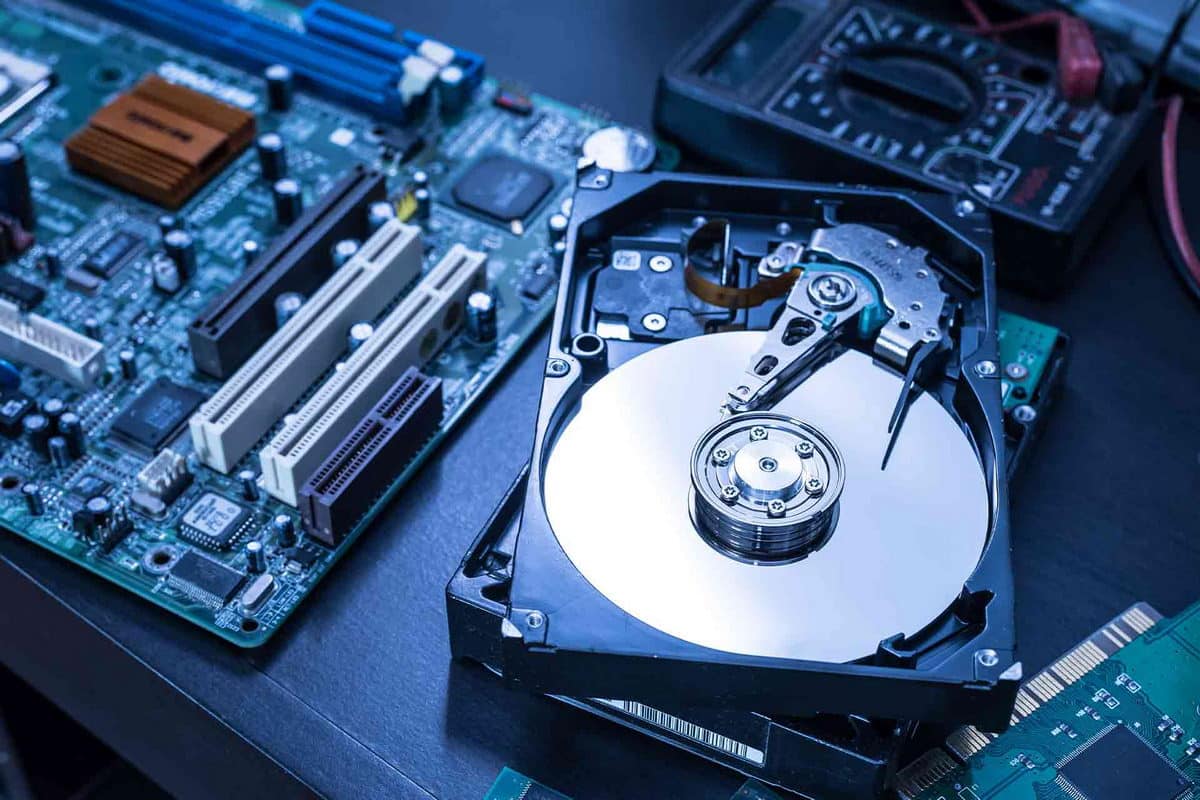
    Losing important data from your hard disk can be a frustrating experience, especially if you didn’t back it up. However, there’s still hope. In many cases, deleted data can be recovered with the right tools and techniques. This article aims to provide newbies with some valuable tips on recovering deleted data from a hard disk. While the process might seem daunting at first, following these guidelines can significantly increase your chances of successful data recovery.

    TIPS AFTER DELETED DATA FROM HARD DISK

    1. Act quickly and stop using the disk: The first and most crucial step after realizing that you have deleted important data is to stop using the hard disk immediately. Continued use of the disk can overwrite the deleted data, making it almost impossible to recover. By minimizing disk activity, you maximize your chances of retrieving the deleted files intact.
    2. Avoid installation of recovery software on the same disk: When attempting to recover deleted data, avoid installing recovery software on the same hard disk from which you lost the files. Doing so increases the risk of overwriting the data you’re trying to recover. Instead, use a different storage device or consider creating a bootable USB drive to run the recovery software.
    3. Use reliable data recovery software: Several data recovery software options are available, both free and paid. Look for reputable and well-reviewed software that specializes in hard disk data recovery. Popular choices include EaseUS Data Recovery Wizard, Recuva, and MiniTool Power Data Recovery. These tools use sophisticated algorithms to scan your disk and identify recoverable data.
    4. Select the appropriate recovery mode: Data recovery software typically offers different recovery modes. The two primary modes are quick scan and deep scan. A quick scan provides a faster but less comprehensive search, while a deep scan takes more time but offers a more thorough analysis. Start with a quick scan and if the desired files are not found, proceed to a deep scan.
    5. Recover to a different storage device: To minimize the chances of overwriting your deleted data, it’s crucial to recover the files to a different storage device. This can be an external hard drive, USB flash drive, or cloud storage. Never recover the files to the same hard disk from which they were deleted, as it can lead to permanent data loss.
    6. Seek professional help: If you have valuable or critical data that you cannot afford to lose, it may be worth consulting a professional data recovery service. These services have specialized tools and expertise to recover data from severely damaged or corrupted hard disks. Although they can be expensive, they often provide the best chance of successful recovery.
    7. Prevent future data loss with regular backups: Data loss can be averted by implementing regular backup strategies. Make it a habit to back up your important files to an external hard drive, cloud storage, or both. This way, even if data loss occurs in the future, you’ll have a recent copy to restore from.

    DATA RECOVERY SOFTWARE

    Certainly! Here is a detailed list of software options that can help in recovering deleted data from a hard disk :

    EaseUS Data Recovery Wizard

    EaseUS Data Recovery Wizard is a comprehensive and user-friendly data recovery software available for both Windows and Mac. It offers quick and deep scan options, file preview, selective recovery, and supports various storage devices. It is known for its intuitive interface and efficient recovery capabilities.

    Recuva

    Recuva, developed by Piriform, is a popular Windows-based data recovery software. It provides quick and deep scans, file filters, and search options. Recuva also offers secure deletion and supports multiple file systems, making it a versatile option for recovering deleted data from hard disks.

    Stellar Data Recovery

    Stellar Data Recovery is a cross-platform software available for both Windows and Mac. It offers advanced scanning options, including deep scan and formatted drive recovery. Stellar Data Recovery supports various file types and allows you to create drive images for safe recovery attempts.

    MiniTool Power Data Recovery

    MiniTool Power Data Recovery is a Windows-based software known for its comprehensive data recovery features. It offers multiple scan modes, including quick scan and full scan, allowing you to recover deleted files from various scenarios. The software supports different file systems and has a user-friendly interface.

    Disk Drill

    Disk Drill is a powerful data recovery software available for both Windows and Mac. It provides quick and deep scans, partition recovery, and can recover data from various storage devices. Disk Drill offers a user-friendly interface and includes additional features like data protection and disk health monitoring.

    R-Studio

    R-Studio is a professional-grade data recovery software available for Windows, Mac, and Linux. It supports advanced recovery scenarios, including deleted partitions, formatted disks, and damaged RAID arrays. R-Studio offers customizable scanning options and a range of advanced features for experienced users.

    Wondershare Recoverit

    Wondershare Recoverit is a user-friendly data recovery software available for Windows and Mac. It supports quick and deep scans, preview of recoverable files, and selective recovery. Wondershare Recoverit can recover deleted data from various storage devices and is known for its simplicity and effectiveness.

    Active@ File Recovery

    Active@ File Recovery is a Windows-based software designed to recover deleted or lost files from hard disks and other storage devices. It offers various scan modes, including quick scan and super scan, and supports multiple file systems. Active@ File Recovery also includes a file preview feature.

    PhotoRec

    PhotoRec is a free and open-source data recovery software compatible with multiple platforms, including Windows, Mac, and Linux. It focuses on recovering various file types, including photos, videos, and documents. PhotoRec is command-line based, which may require some technical knowledge to operate effectively.

    TestDisk

    TestDisk, also a free and open-source software, works alongside PhotoRec and focuses on recovering lost partitions and repairing disk structures. It is compatible with Windows, Mac, and Linux and can be run from a command prompt. TestDisk is particularly useful for advanced data recovery and disk repair tasks.

    When using any data recovery software, it is essential to follow the instructions provided by the software and avoid writing new data to the disk from which you are attempting recovery.

    Conclusion:

    Losing data from a hard disk is undoubtedly a distressing situation, but with the right approach, there’s hope for recovery. Acting quickly, using reliable data recovery software, and recovering files to a different storage device are essential steps to increase your chances of successful data retrieval. Remember to always back up your important data regularly to prevent future losses. By following these tips, even newbies can navigate the process of deleted data recovery from a hard disk and regain their valuable files.